 SwitchDesk
Console cable
New switch out of the box? Plug in the console cable, pick the COM port from the list and open it. SwitchDesk handles the first-login password setup.
For Huawei S-series and CloudEngine
SwitchDesk is a Windows app that opens a Huawei switch over SSH or Telnet, shows its ports, VLANs and settings, and lets you change them in plain forms. You see the exact commands before anything is sent, and every change can be undone.
Want to look first? The app has built-in demo switches, so you can try every screen without touching real hardware.
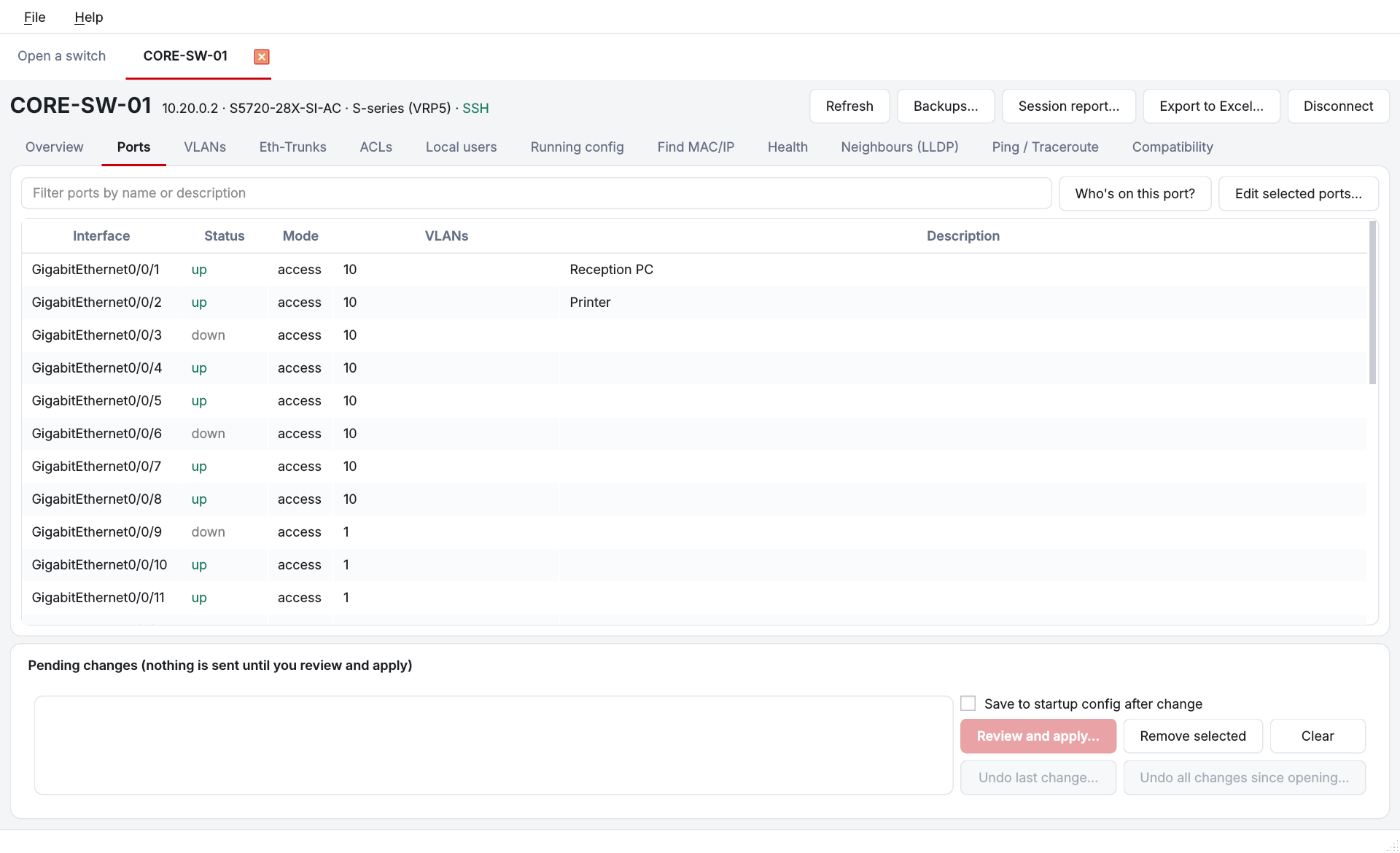
Pick ports, fill in a form, review, apply. SwitchDesk writes the VRP commands for the switch you opened.
New switch out of the box? Plug in the console cable, pick the COM port from the list and open it. SwitchDesk handles the first-login password setup.
Access, trunk and hybrid ports, allowed VLANs, PVID, descriptions, shut and no shut, for one port or many at once. Save common setups as port templates.
Create, rename and delete VLANs, and give a VLAN an IP address. SwitchDesk warns you if ports still use a VLAN you're about to delete.
Create link aggregations in manual or LACP mode and move member ports in and out, with the right commands for S-series and CloudEngine.
Add or remove rules in basic and advanced ACLs. Add switch users, change their level or password. Passwords are never shown, logged or saved.
Add a VLAN to every uplink across ten switches in one go. Preview each switch's commands, then apply; it stops at the first switch that fails.
Find a MAC or IP address, see who's on a port, health (CPU, memory, temperature, fans, power), LLDP neighbours, ping and traceroute from the switch.
A configuration backup is saved every time you open a switch. Search all of them for an IP, MAC or description, and compare any two side by side.
One workbook per switch with ports, VLANs, Eth-Trunks, ACLs, users, and the MAC and ARP tables, ready to hand over or audit.
Nothing reaches the switch until you have read the exact commands and ticked "I have checked these commands". The undo commands are worked out at the same time, so going back is one click.
commit trial: if you lose access, the switch rolls back by itself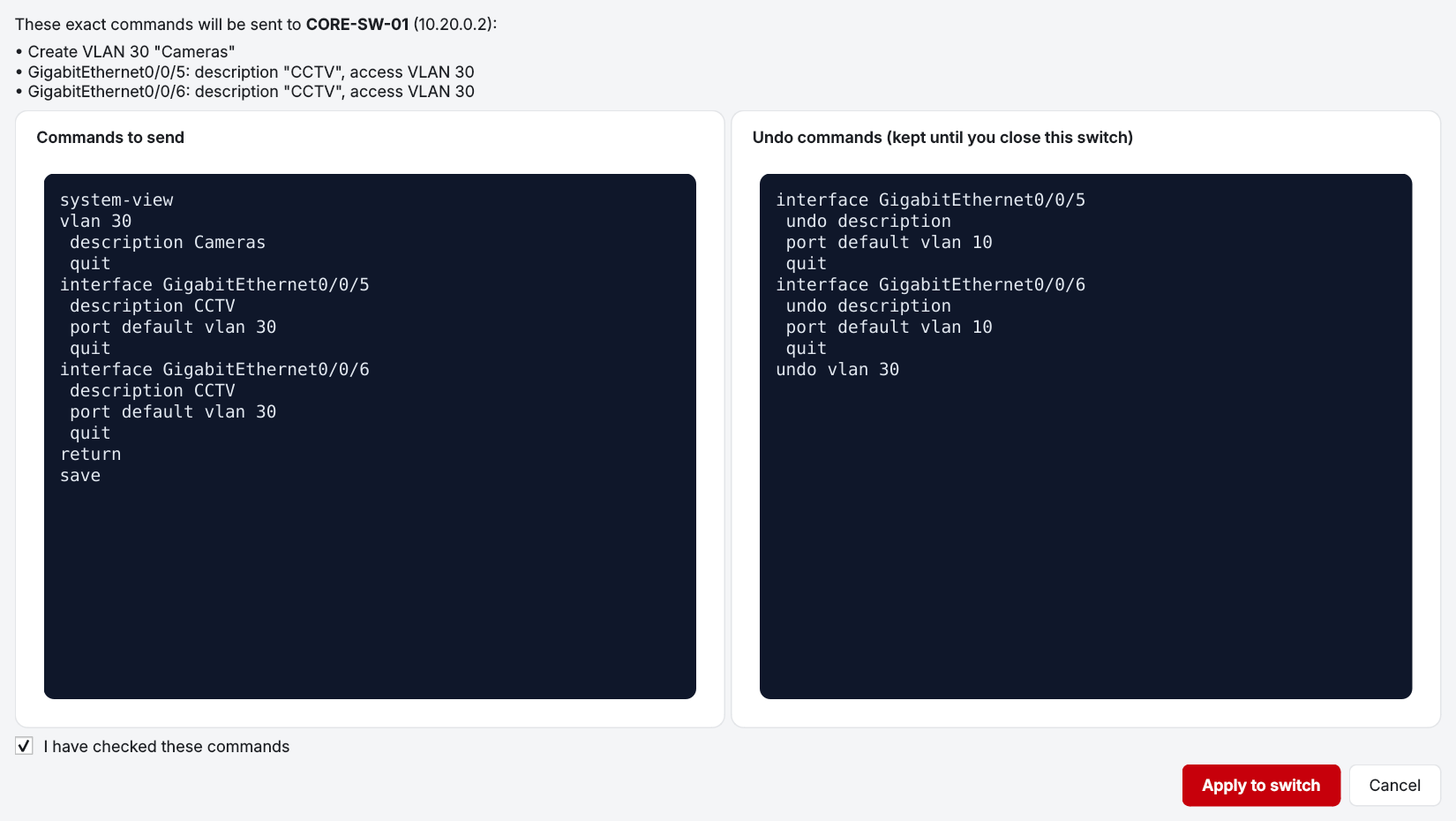
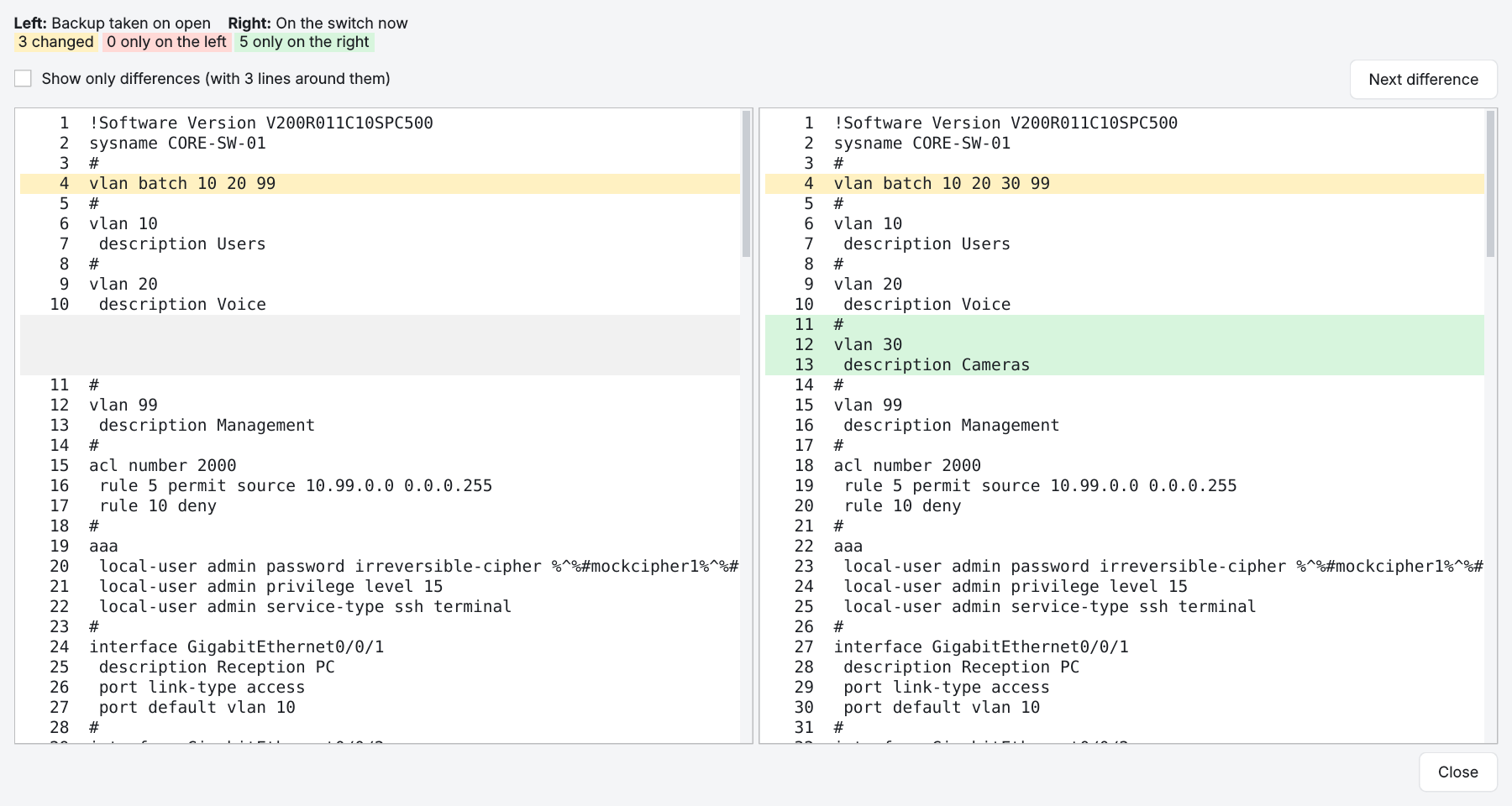
Compare the backup taken when you opened the switch with the switch as it is now, or any two backups from any switch. Changed lines are yellow, added lines green, removed lines red, and "Next difference" jumps straight to them.
Not on disk, not in Windows, not even for the rest of the session. Open a switch ten times, type the password ten times. SSH keys are supported too.
SwitchDesk remembers each switch's SSH key and stops before sending your password if it ever changes.
Some switches only have Telnet. SwitchDesk works with them, and marks the tab red so nobody forgets the password travels unencrypted.
Find, health, LLDP, "who's on this port", search and export only use display commands.
Opening a model it hasn't seen before? SwitchDesk checks every screen first and blocks changes until it's sure it reads that switch correctly.
Updates are checked against a checksum before installing, and most are under 100 KB.
Get the installer from the download button (about 48 MB).
If Windows shows "Windows protected your PC", choose More info, then Run anyway. This appears because the installer isn't code-signed yet.
Type its IP address and password, or press Try a demo S-series to look around first.
Huawei S-series switches running VRP5 (such as S5720 and S5735) and CloudEngine switches running VRP8 (such as the CE6850). The type is detected when you connect. For other models, SwitchDesk runs a compatibility check first.
No. It is a normal Windows program. It talks straight from your PC to the switch.
A list of switches you've opened (name, IP, model, never passwords), an activity log, and the configuration backups, all in your Windows profile.
Only the update check, and a problem report or idea if you choose to send one after reading it. Switch configurations are never sent.
Nothing. SwitchDesk is free and open source under the MIT licence, and the source code is on GitHub.
Use Help > Report a problem in the app, or Help > Feature request / idea for suggestions. You can also email vsmann3@gmail.com.
Free code signing provided by SignPath.io, certificate by SignPath Foundation.
This program will not transfer any information to other networked systems unless specifically requested by the user or the person installing or operating it.